Keeping a photo is only the first step. Receptify attaches receipts to expense records so you can review the spending and find its supporting document together. Receipt parsing runs on Android; synchronized records can also be used on the web.
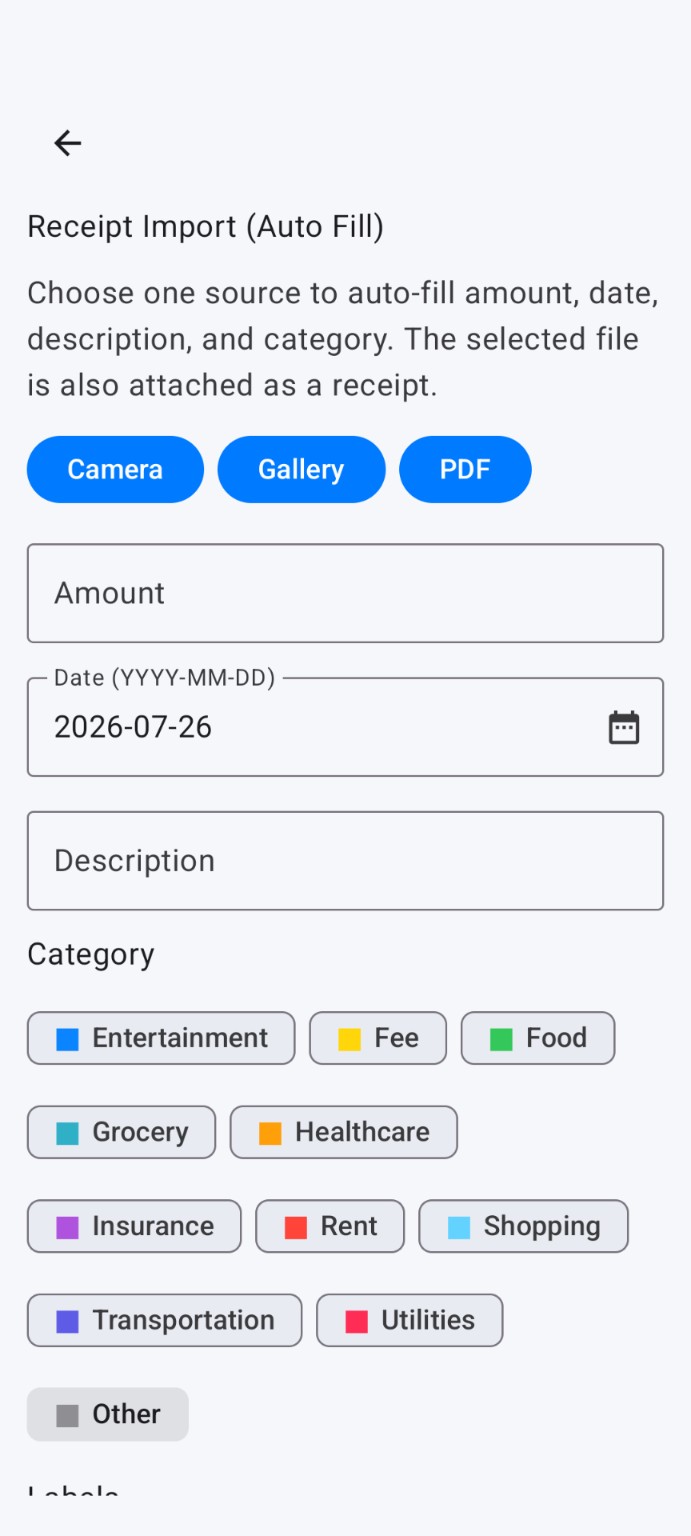
Turn a receipt into a record
Use a sample receipt without personal details for your first attempt. The screenshot shows the actual import interface; it is not a claim that every receipt will be read correctly.
- Choose Camera, Gallery or PDF from Receipt Import on Android.
- Review the fields populated by on-device parsing, including amount, date, description and category.
- Correct any missing or incorrect fields. In particular, check whether the amount is the total rather than a subtotal.
- Save the expense with its attachment. When you enable Drive sync, use the matching encrypted vault on Android and Web.
A simple review example
Imagine a receipt with a $4.50 latte and an $8.00 sandwich. The total is $12.50. Check that the amount is 12.50 and that the date and category fit before saving. This is a fictional example, not a measured OCR result.
Small print, blur, unusual layouts and multiple totals can make extraction less useful. Reviewing the fields is part of the workflow, not an optional accuracy guarantee.
Keep attachments useful
Keep the attachment with the relevant expense instead of relying on an unorganized photo folder. You can preview, rotate, download or remove attachments, and search or filter expense records to find what you need.
For a special purchase, choose whether it belongs in your usual budget. Receptify separates a one-time purchase from an Oops label for a purchase you later regret.
Private sync and sharing are different
Synchronized records are encrypted before upload to your own Drive, and you keep the password. Explicit exports create unencrypted, shareable folders. Check the selected records and folder permissions before sharing an export.